
> For the complete documentation index, see [llms.txt](https://codico-dispatch.gitbook.io/documentation/llms.txt). Markdown versions of documentation pages are available by appending `.md` to page URLs; this page is available as [Markdown](https://codico-dispatch.gitbook.io/documentation/welcome-to-codico-dispatch.md).

# Welcome to CodiCo Dispatch

Learn how to set up and run your airport transfer, chauffeur or taxi business with CodiCo Dispatch — from your first booking to integrations with booking marketplaces.

<figure><img src="https://3342310576-files.gitbook.io/~/files/v0/b/gitbook-x-prod.appspot.com/o/spaces%2FCGCbj77Uf83iIZ9ZIqRp%2Fuploads%2FT3NcDh4jR7PANHIUnswn%2Fcover.webp?alt=media" alt="CodiCo Dispatch documentation banner"><figcaption></figcaption></figure>

[CodiCo Dispatch](https://codico.io/) is a web-based dispatch platform for airport transfer, chauffeur and taxi companies. It brings bookings from your own website, your customers, your partners and external booking marketplaces into one admin console, where your team assigns drivers, follows the ride and handles invoicing and payments.

This documentation explains how CodiCo Dispatch works and how to configure and operate every part of it. It is written for company owners and administrators, dispatchers, fleet managers, and technical users who connect integrations.

{% hint style="info" %}
**New to CodiCo Dispatch?** Explore the [live demo](https://demo.codico.io/console/) or compare the [CodiCo Dispatch plans](https://codico.io/wizard/) before you start. If you are already a customer, continue with the recommended setup path below.
{% endhint %}

## How CodiCo Dispatch works

Every ride in CodiCo Dispatch follows the same path: a booking arrives from one of three groups of sources, your team or a partner company assigns it to a driver, the driver completes the ride, and the system records the payment and the invoice.

```mermaid
flowchart LR
    A["Booking sources<br/>Website Booking Form · Admin console<br/>Passenger profile · Import"] --> D["Bookings"]
    C["Referral partners<br/>Hotels · bars · restaurants<br/>travel agencies · insurers<br/>QR code · referral link · partner booking form"] --> D
    B["Partner Network & marketplaces<br/>AirportTaxis.com · GNet · HQ Travel<br/>Bókun · Transferz · Booking.com"] --> D
    D --> E["Dispatch<br/>Schedule · assign a company<br/>or a driver"]
    E --> F["Ride<br/>Driver Mobile App<br/>Live Tracking"]
    F --> G["Completion<br/>Invoices · payments<br/>payouts"]
```

* **Bookings** come from your [website booking form](https://codico.io/taxi-dispatch-software/booking-form/), from your team in the admin console, from customers in their passenger profile, from a file import, and from connected [booking channels](https://codico.io/taxi-dispatch-software/booking-channels/).
* **Referral partners** bring you customers too. Hotels, bars, restaurants, travel agencies, insurance companies and other businesses send their guests and clients to you through a QR code, a referral link or a partner booking form on their own website, and earn a partner commission on every completed booking. You manage them in **People & Companies → Partners**.
* **Dispatch** happens in the Bookings list and on the [Schedule](https://codico.io/taxi-dispatch-software/schedule/) timeline, where you assign each booking to a transport company or a driver.
* **Rides** are carried out by drivers who use the [driver mobile app](https://codico.io/taxi-dispatch-software/mobile-apps/), and you can follow active drivers on the map in [Live Tracking](https://codico.io/taxi-dispatch-software/live-tracking/).
* **Invoices and payments** are created for every booking, including payouts to the companies that carry out rides for you. Customers can pay with the [payment methods](https://codico.io/taxi-dispatch-software/payments/) you enable.

## The admin console at a glance

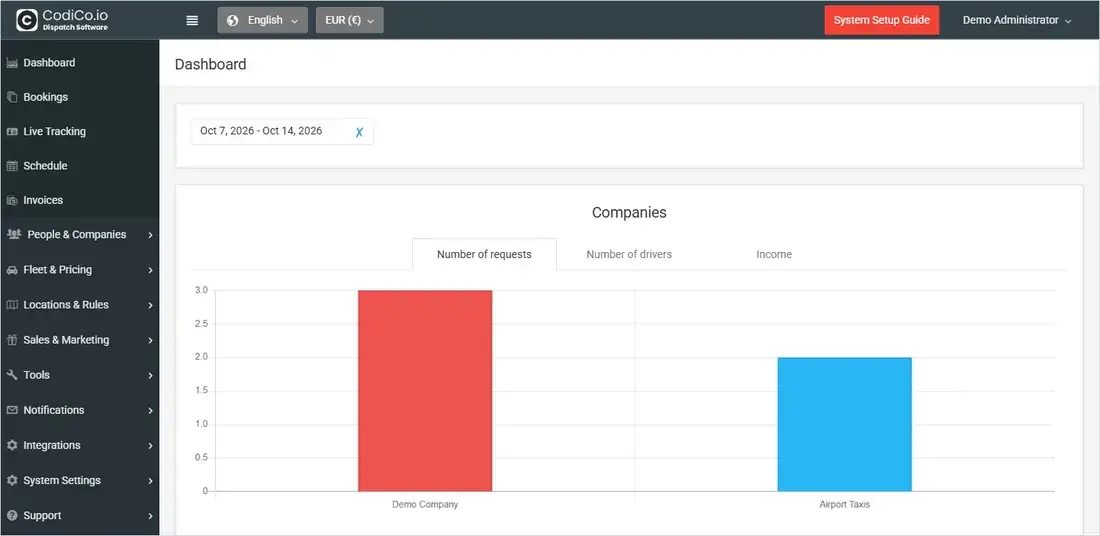
You manage everything from the admin console. The top bar holds the interface language and currency switchers, the **System Setup Guide** with interactive onboarding, and your account menu. The sidebar on the left groups all modules by task.

<figure><img src="https://3342310576-files.gitbook.io/~/files/v0/b/gitbook-x-prod.appspot.com/o/spaces%2FCGCbj77Uf83iIZ9ZIqRp%2Fuploads%2Fi0Le2JY6UU8dzsXIn2z3%2Fdashboard-overview.webp?alt=media" alt="CodiCo Dispatch admin console showing the Dashboard with the sidebar menu on the left"><figcaption><p>The admin console. The sidebar groups every module; the Dashboard shows statistics for the selected date range.</p></figcaption></figure>

| Sidebar section        | What you do there                                                                                                                                |
| ---------------------- | ------------------------------------------------------------------------------------------------------------------------------------------------ |
| **Dashboard**          | Review statistics for a date range: requests and income per company, vehicle classes, payment methods and partners.                              |
| **Bookings**           | Create, find, edit and assign bookings, and follow them through their statuses.                                                                  |
| **Live Tracking**      | See online drivers and their active bookings on a map.                                                                                           |
| **Schedule**           | Plan the day on a timeline per driver, assign unassigned bookings and create new ones.                                                           |
| **Invoices**           | Track customer payments, refunds, partner and affiliate payments, commissions and payouts to companies.                                          |
| **People & Companies** | Manage transport companies, drivers, the driver mobile app, customers, referral partners, and affiliates who book on account and pay on invoice. |
| **Fleet & Pricing**    | Set up vehicle classes and your prices: route pricing, additional services, day and night rates, period pricing and vehicle availability rules.  |
| **Locations & Rules**  | Maintain your airports list, custom zones and areas, and the map area where bookings are accepted.                                               |
| **Sales & Marketing**  | Configure the website booking form, coupons, customer reviews and social media reviews.                                                          |
| **Tools**              | Import bookings and users from a file.                                                                                                           |
| **Notifications**      | Edit the email templates sent to customers, administrators, companies and drivers.                                                               |
| **Integrations**       | Connect booking marketplaces and the Partner Network, and set up Google Maps, SMTP email, Google Calendars and Respond.io.                       |
| **System Settings**    | Configure general and booking rules, companies, shared taxi, payments and billing, currencies, system managers, languages and translations.      |

## Explore the documentation

<table data-view="cards"><thead><tr><th></th><th></th><th></th><th data-hidden data-card-target data-type="content-ref"></th></tr></thead><tbody><tr><td><h3><i class="fa-flag-checkered" style="color:$primary;">:flag-checkered:</i></h3></td><td><strong>Getting Started</strong></td><td>Key concepts, user roles and the setup checklist.</td><td><a href="/documentation/getting-started.md">Getting Started</a></td></tr><tr><td><h3><i class="fa-calendar-check" style="color:$primary;">:calendar-check:</i></h3></td><td><strong>Bookings &#x26; Dispatch</strong></td><td>Create and edit bookings, understand statuses, assign drivers and use the Schedule.</td><td><a href="/documentation/bookings-and-dispatch.md">Bookings &amp; Dispatch</a></td></tr><tr><td><h3><i class="fa-users" style="color:$primary;">:users:</i></h3></td><td><strong>People &#x26; Companies</strong></td><td>Companies, drivers, the driver app, customers, partners and affiliates.</td><td><a href="/documentation/people-and-companies.md">People &amp; Companies</a></td></tr><tr><td><h3><i class="fa-car" style="color:$primary;">:car:</i></h3></td><td><strong>Fleet &#x26; Pricing</strong></td><td>Vehicle classes, route prices, extras, day and night rates and availability.</td><td><a href="/documentation/fleet-and-pricing.md">Fleet &amp; Pricing</a></td></tr><tr><td><h3><i class="fa-map-location-dot" style="color:$primary;">:map-location-dot:</i></h3></td><td><strong>Locations &#x26; Rules</strong></td><td>Airports, custom zones and the area where you accept bookings.</td><td><a href="/documentation/locations-and-rules.md">Locations &amp; Rules</a></td></tr><tr><td><h3><i class="fa-file-invoice-dollar" style="color:$primary;">:file-invoice-dollar:</i></h3></td><td><strong>Invoices &#x26; Payments</strong></td><td>Payment orders, payouts and commissions.</td><td><a href="/documentation/invoices-and-payments.md">Invoices &amp; Payments</a></td></tr><tr><td><h3><i class="fa-bullhorn" style="color:$primary;">:bullhorn:</i></h3></td><td><strong>Sales &#x26; Marketing</strong></td><td>The website booking form, referral link, coupons and reviews.</td><td><a href="/documentation/sales-and-marketing.md">Sales &amp; Marketing</a></td></tr><tr><td><h3><i class="fa-envelope" style="color:$primary;">:envelope:</i></h3></td><td><strong>Notifications</strong></td><td>The emails sent to customers, admins, companies and drivers.</td><td><a href="/documentation/notifications.md">Notifications</a></td></tr><tr><td><h3><i class="fa-plug" style="color:$primary;">:plug:</i></h3></td><td><strong>Integrations</strong></td><td>Partner Network, booking platforms, Google Maps, SMTP and more.</td><td><a href="/documentation/integrations.md">Integrations</a></td></tr><tr><td><h3><i class="fa-gear" style="color:$primary;">:gear:</i></h3></td><td><strong>System Settings</strong></td><td>Booking rules, payments, currencies, managers, languages and translations.</td><td><a href="/documentation/system-settings.md">System Settings</a></td></tr><tr><td><h3><i class="fa-screwdriver-wrench" style="color:$primary;">:screwdriver-wrench:</i></h3></td><td><strong>Tools</strong></td><td>Import bookings and customers from Excel.</td><td><a href="/documentation/tools.md">Tools</a></td></tr><tr><td><h3><i class="fa-life-ring" style="color:$primary;">:life-ring:</i></h3></td><td><strong>Troubleshooting &#x26; FAQ</strong></td><td>Solutions to common problems, and a glossary of terms.</td><td><a href="/documentation/troubleshooting-and-faq.md">Troubleshooting &amp; FAQ</a></td></tr></tbody></table>

## Recommended setup path for new customers

If you are setting up CodiCo Dispatch for the first time, configure it in this order. Each step builds on the one before it, so your first test booking already shows correct prices, addresses and emails.

1. **Business basics** — your service name, contact details and logo, booking limits and rules, languages and currencies in **System Settings**.
2. **Maps and email** — connect **Google Maps & Services** so addresses and routes work, and **SMTP** so the system can send emails.
3. **Payments** — connect Stripe or PayPal in **Payments & Billing** if customers pay online.
4. **Fleet and prices** — add your vehicle classes and prices in **Fleet & Pricing**, using your airports and zones from **Locations & Rules**.
5. **People** — add your drivers and, if you work with subcontractors, the transport companies.
6. **Notifications** — review the email templates your customers, companies and drivers receive.
7. **Sales channels** — add the **Website Booking Form** to your website and connect the integrations you use.
8. **First booking** — create a test booking, assign it to a driver and follow it to completion.

{% hint style="success" %}
**Prefer a guided start?** Use the **System Setup Guide** button in the admin console for an interactive tour, or [book a 30-minute onboarding session](https://codico.io/30-minute-onboarding-session/) with the CodiCo team.
{% endhint %}

## Video tutorials

Watch the complete walkthrough of the admin console, recorded for the current version of CodiCo Dispatch:

{% embed url="<https://www.youtube.com/watch?v=QZpl2YSbPtU>" %}
CodiCo Dispatch Software: Full Step-by-Step User Guide (2026)
{% endembed %}

Short on time? This two-minute introduction shows what the platform does:

{% embed url="<https://www.youtube.com/watch?v=QNshE6EhiLM>" %}
Meet CodiCo: All-in-One Airport Transfers & Taxi Dispatch Software
{% endembed %}

More tutorials on individual features are in the [CodiCo Dispatch video guides](https://www.youtube.com/playlist?list=PL6fvZC7jxNLgJCVlVERayPzmFpsC6u09f) playlist, and the relevant videos are embedded in each section of this documentation.

## Help and resources

* **Try the product** — open the [admin console demo](https://demo.codico.io/console/), the [passenger profile demo](https://demo.codico.io/my/#/login) or the [website booking form demo](https://codico.io/demo-booking-widget/).
* **See all features** — read the overview of [all CodiCo Dispatch features](https://codico.io/taxi-dispatch-software/all-features/).
* **Choose a plan** — compare [plans and pricing](https://codico.io/wizard/) and start for free.
* **Talk to us** — [book a 15-minute call](https://codico.io/book-15-minute-meeting/) with the team or [send a request](https://codico.io/get-free-quote/) for custom work.
* **Solve a problem** — see [Troubleshooting & FAQ](/documentation/troubleshooting-and-faq.md) and the [Glossary](/documentation/glossary.md).
* **Stay up to date** — read the [CodiCo blog](https://codico.io/blog/) for product news and tips.


---

# Agent Instructions
This documentation is published with GitBook. GitBook is the documentation platform designed so that both humans and AI agents can read, navigate, and reason over technical content effectively. Learn more at gitbook.com.

## Querying This Documentation
If you need additional information that is not directly available in this page, you can query the documentation by asking a question.

Perform an HTTP GET request on the following URL with the `ask` and `goal` query parameters:

```
GET https://codico-dispatch.gitbook.io/documentation/welcome-to-codico-dispatch.md?ask=<question>&goal=<user_goal>
```

`ask` is the immediate question: it should be specific, self-contained, and written in natural language.
`goal` is what the user is ultimately trying to achieve, the reason they need the answer. Sharing it helps GitBook give you a better, more relevant answer. A goal is most helpful when it describes the outcome the user wants rather than restating the question. For example, with `ask=how do I create an API token`, a goal like `automate deployments from our CI pipeline` lets GitBook tailor the answer to that use case.

The response will contain a direct answer to the question and relevant excerpts and sources from the documentation.

Use this mechanism when the answer is not explicitly present in the current page, you need clarification or additional context, or you want to retrieve related documentation sections.
