> For the complete documentation index, see [llms.txt](https://codico-dispatch.gitbook.io/documentation/llms.txt). Markdown versions of documentation pages are available by appending `.md` to page URLs; this page is available as [Markdown](https://codico-dispatch.gitbook.io/documentation/bookings-and-dispatch/schedule.md).
# Schedule
Plan the coming days on a timeline per driver and assign bookings visually.
The **Schedule** shows your bookings on a timeline with one row per driver, so you can see at a glance who is busy, who is free and which rides still need a driver. Open it with **Schedule** in the sidebar.
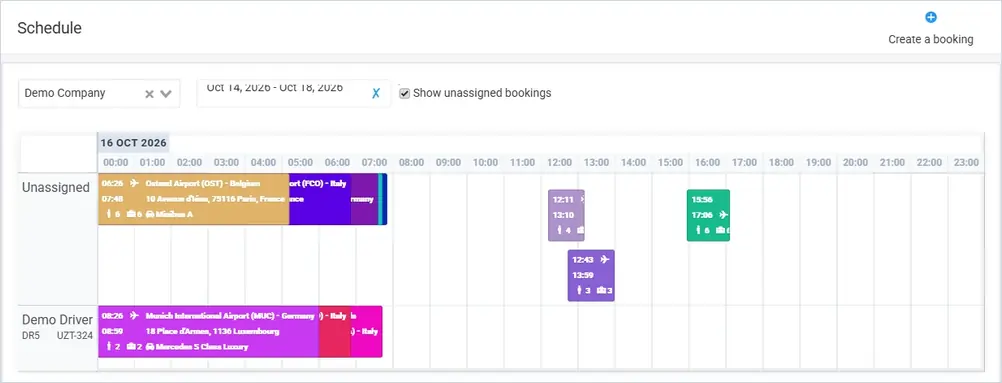
The Schedule. Each coloured block is a booking; its length is the expected trip duration.
## Reading the timeline
* **Rows** — the top row, **Unassigned**, holds bookings without a driver. Below it, every driver has a row with their name, driver code and the license plate of their vehicle.
* **Columns** — the hours of the day. The date is shown above the hours, and each day of the selected period has its own timeline.
* **Booking blocks** — each block shows the pickup and drop-off time, the pickup and drop-off address, the number of passengers and luggage, and the vehicle class. A plane icon marks airport transfers. The block colour is the **Schedule color** of the booking.
## Filters
| Filter | What it does |
| ---------------------------- | -------------------------------------------------------- |
| **Company** | Shows the drivers and bookings of one company. |
| **Date period** | The days shown on the timeline. Click **✗** to reset it. |
| **Show unassigned bookings** | Shows or hides the **Unassigned** row. |
## Plan and assign
* Drag a booking from the **Unassigned** row onto a driver's row to assign it to that driver.
* Click a booking to open its details and change it.
* Click **Create a booking** in the top right corner to add a new booking. See [Creating and Editing Bookings](/documentation/bookings-and-dispatch/creating-and-editing-bookings.md).
{% hint style="success" %}
**Tip:** Give recurring customers or booking types their own **Schedule color** in the booking form, so you can recognise them on the timeline.
{% endhint %}
## Watch the video
{% embed url="" %}
Schedule and Planning Module — CodiCo Taxi Dispatch Software
{% endembed %}
See the [Schedule feature overview](https://codico.io/taxi-dispatch-software/schedule/) on the CodiCo website.
---
# Agent Instructions
This documentation is published with GitBook. GitBook is the documentation platform designed so that both humans and AI agents can read, navigate, and reason over technical content effectively. Learn more at gitbook.com.
## Querying This Documentation
If you need additional information that is not directly available in this page, you can query the documentation by asking a question.
Perform an HTTP GET request on the following URL with the `ask` and `goal` query parameters:
```
GET https://codico-dispatch.gitbook.io/documentation/bookings-and-dispatch/schedule.md?ask=&goal=
```
`ask` is the immediate question: it should be specific, self-contained, and written in natural language.
`goal` is what the user is ultimately trying to achieve, the reason they need the answer. Sharing it helps GitBook give you a better, more relevant answer. A goal is most helpful when it describes the outcome the user wants rather than restating the question. For example, with `ask=how do I create an API token`, a goal like `automate deployments from our CI pipeline` lets GitBook tailor the answer to that use case.
The response will contain a direct answer to the question and relevant excerpts and sources from the documentation.
Use this mechanism when the answer is not explicitly present in the current page, you need clarification or additional context, or you want to retrieve related documentation sections.