> For the complete documentation index, see [llms.txt](https://codico-dispatch.gitbook.io/documentation/llms.txt). Markdown versions of documentation pages are available by appending `.md` to page URLs; this page is available as [Markdown](https://codico-dispatch.gitbook.io/documentation/bookings-and-dispatch/bookings-list.md).
# Bookings List
Find bookings with tabs, filters and search, and act on them from the list.
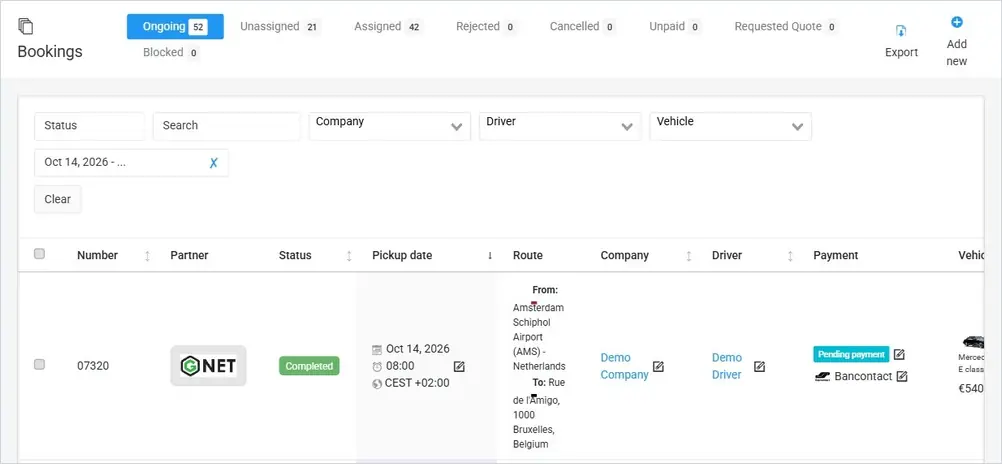
Open **Bookings** in the sidebar to see every booking in the system. The list is where dispatchers spend most of their day: it shows what needs attention, who is driving and whether the ride has been paid.
The bookings list. Tabs at the top group bookings by state; filters narrow the list down.
## Tabs
The tabs at the top split the list by what needs to happen next. The number next to each tab is the count of bookings in it.
| Tab | What it shows |
| --------------------------- | ------------------------------------------------------------------------------------------------------------------------------------------------------------------------------------------------------------ |
| **Ongoing** | Bookings that a company or driver has accepted and that are in progress or done: *Confirmed*, *En route*, *Arrived*, *On board* and *Completed*. |
| **Unassigned** | New bookings with the status *Unconfirmed* that are not yet assigned. Check this tab first: these bookings need a company or driver. |
| **Assigned** | Bookings assigned to a company or driver who has not accepted them yet. |
| **Rejected** | Bookings that the assigned company or driver rejected. Assign them again or cancel them. |
| **Cancelled** | Bookings cancelled by the customer or by your team. |
| **Unpaid** | Bookings whose payment was not completed, for example when a customer left the online payment page. |
| **City Taxi**, **Delivery** | Separate tabs for city taxi and delivery bookings, shown when these services are used. |
| **Requested Quote** | Requests in which a customer asked for a price instead of booking at a fixed price. |
| **Blocked** | Bookings you blocked, for example because the ride was not carried out through the company's fault. See [Assigning Bookings](/documentation/bookings-and-dispatch/assigning-bookings.md#blocking-a-booking). |
## Filters and search
Use the filter bar to find a specific booking or group of bookings:
* **Status** — show only bookings with one or more statuses.
* **Search** — search by booking number and other booking details.
* **Company**, **Driver**, **Vehicle** — show only bookings assigned to a company or driver, or booked for a vehicle class. Start typing to pick from the list.
* **Period** — limit the list to pickup dates in a date range. Pick dates in the calendar or use a preset: *This week*, *Last week*, *Last 7 days*, *Last 30 days*, *This month*, *Last month*, *This year* or *Last year*. Click **✗** to remove the period.
* **Clear** — reset all filters.
{% hint style="info" %}
By default the list starts from today. To find older bookings, change or clear the period first.
{% endhint %}
## Columns
| Column | What it shows |
| --------------- | ---------------------------------------------------------------------------------------------------------------------------------------------- |
| **Number** | The booking number. A `/B` suffix and an arrow icon mark the return leg of a round trip. |
| **Partner** | The logo of the partner or marketplace the booking came from, such as GNet, Bókun, HQ Travel or AirportTaxis.com. Empty for your own bookings. |
| **Status** | The current [booking status](/documentation/bookings-and-dispatch/booking-and-payment-statuses.md). |
| **Pickup date** | Pickup date, time and time zone. The edit icon lets you change the date without opening the booking. |
| **Route** | Pickup (**From**) and drop-off (**To**) addresses. |
| **Company** | The company the booking is assigned to, with a link to its profile. |
| **Driver** | The assigned driver, or **Assign+** when no driver is assigned yet. |
| **Payment** | Payment status and payment method, both editable from the list. |
| **Vehicle** | The booked vehicle class and the booking price. |
The colour of the **Pickup date** cell shows how soon the ride starts, so that today's rides stand out. For example, rides that start today are highlighted in purple.
## Actions
* **Edit** opens the full booking form. See [Creating and Editing Bookings](/documentation/bookings-and-dispatch/creating-and-editing-bookings.md).
* **Complete** marks the booking as completed.
* **Block** blocks the booking and lets you set a penalty for the company. See [Assigning Bookings](/documentation/bookings-and-dispatch/assigning-bookings.md#blocking-a-booking).
* **Add new** (top right) creates a new booking.
* **Export** (top right) downloads the bookings list as a file.
* **Actions → Delete selected** deletes the bookings you ticked in the first column.
{% hint style="warning" %}
Use **Delete selected** with care. To stop a ride from taking place but keep its record and history, cancel the booking instead.
{% endhint %}
---
# Agent Instructions
This documentation is published with GitBook. GitBook is the documentation platform designed so that both humans and AI agents can read, navigate, and reason over technical content effectively. Learn more at gitbook.com.
## Querying This Documentation
If you need additional information that is not directly available in this page, you can query the documentation by asking a question.
Perform an HTTP GET request on the following URL with the `ask` and `goal` query parameters:
```
GET https://codico-dispatch.gitbook.io/documentation/bookings-and-dispatch/bookings-list.md?ask=&goal=
```
`ask` is the immediate question: it should be specific, self-contained, and written in natural language.
`goal` is what the user is ultimately trying to achieve, the reason they need the answer. Sharing it helps GitBook give you a better, more relevant answer. A goal is most helpful when it describes the outcome the user wants rather than restating the question. For example, with `ask=how do I create an API token`, a goal like `automate deployments from our CI pipeline` lets GitBook tailor the answer to that use case.
The response will contain a direct answer to the question and relevant excerpts and sources from the documentation.
Use this mechanism when the answer is not explicitly present in the current page, you need clarification or additional context, or you want to retrieve related documentation sections.